반응형
반응형
반응형

[Tkinter 2편] 위젯 배치, 위치 설정

파이썬 Tkinter 패키지를 사용하여 직접 GUI를 만들어 사용하는 방법을 공유합니다.


목차:


1. Tkinter 위젯 배치 방법 소개

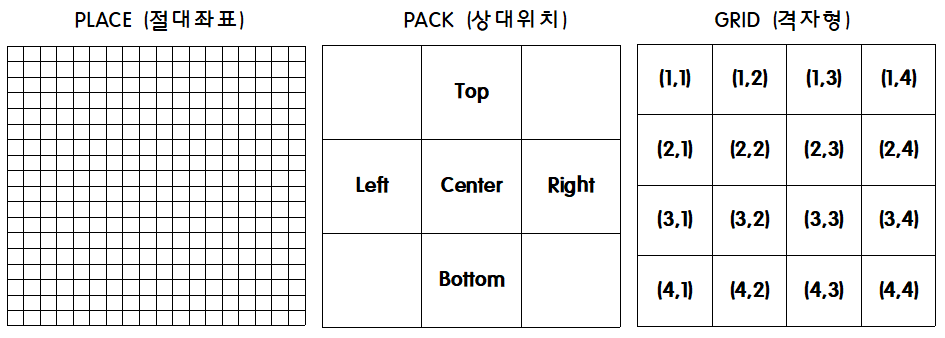
  • Tkinter에서 Button, Entry 등 "위젯"을 배치하기 위해서 아래의 3가지 방법을 이용할 수 있습니다.
    1. Place (절대좌표)
    2. Pack (상대위치)
    3. Grid (격자형 배치)

  • 예시 button = tk.Button(root, text="테스트")를 배치하기 위해:
    1. Place : button.place(x=1, y=1)
    2. Pack : button.pack(side="left")
    3. Grid : button.grid(row=1, column=1)

하나의 프레임 내에서 Place / Pack / Grid 를 동시에 사용할 수 없습니다.


2. Place 절대좌표 배치

하나의 프레임 내에서 Place / Pack / Grid 를 동시에 사용할 수 없습니다.

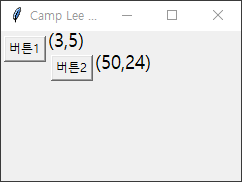
  • Place는 지정한 프레임 내에서 x, y 좌표값을 직접 입력하여 위젯을 배치할 수 있습니다.
  • 위젯 위치를 정밀하게 배치할 경우 유용하게 사용할 수 있습니다.
  • .place(x= x좌표, y= y좌표)
## tkinter를 tk로 선언
import tkinter as tk

## Tk setup
root = tk.Tk()

# GUI Window 제목 설정
root.title("Camp Lee Python")
# GUI Window 사이즈 설정
root.geometry("240x150")

btn1 = tk.Button(root, text="버튼1")
btn1.place(x=3, y=5)
btn2 = tk.Button(root, text="버튼2")
btn2.place(x=50, y=24)

root.mainloop()


3. Pack 상대좌표 배치

하나의 프레임 내에서 Place / Pack / Grid 를 동시에 사용할 수 없습니다.

  • Pack은 지정한 프레임 내에서 위젯 간의 상대적인 위치로 위젯을 배치할 수 있습니다.
  • 상대위치를 사용하므로 먼저 작성된 코드가 먼저 적용됩니다. (코드 순서에 영향을 받음)
  • 위젯을 간편하게 배치할 때 유용하게 사용할 수 있습니다.
  • 윈도우 창 크기를 변환할 때 위치에 맞게 조절됩니다.
  • .pack(side="위치")
## tkinter를 tk로 선언
import tkinter as tk

## Tk setup
root = tk.Tk()

# GUI Window 제목 설정
root.title("Camp Lee Python")
# GUI Window 사이즈 설정
root.geometry("240x100")

entry = tk.Entry(root)
entry.pack(side="top")

btn1 = tk.Button(root, text="예", width=10)
btn1.pack(side="left")
btn2 = tk.Button(root, text="아니오", width=10)
btn2.pack(side="right")
btn2 = tk.Button(root, text="닫기", width=10, command= root.quit)
btn2.pack(side="bottom")

root.mainloop()


4. Grid 격자형 배치

하나의 프레임 내에서 Place / Pack / Grid 를 동시에 사용할 수 없습니다.

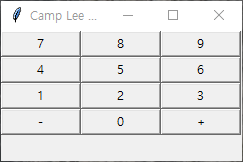
  • Grid는 지정한 프레임 내에서 격자형태로 위젯을 배치할 수 있습니다.
  • 위젯을 격자형으로 배치하고자 할 때 유용하게 사용할 수 있습니다. (예시 : 계산기의 숫자패드)
  • 행과 열 번호로 위젯을 배치할 수 있습니다.
  • .grid(row= 행번호,column= 열번호)
## tkinter를 tk로 선언
import tkinter as tk

# GUI Window 제목 설정
root.title("Camp Lee Python")
# GUI Window 사이즈 설정
root.geometry("241x130")

btn_min = tk.Button(root, text="-", width=10)
btn_plus = tk.Button(root, text="+", width=10)
btn0 = tk.Button(root, text="0", width=10)
btn1 = tk.Button(root, text="1", width=10)
btn2 = tk.Button(root, text="2", width=10)
btn3 = tk.Button(root, text="3", width=10)
btn4 = tk.Button(root, text="4", width=10)
btn5 = tk.Button(root, text="5", width=10)
btn6 = tk.Button(root, text="6", width=10)
btn7 = tk.Button(root, text="7", width=10)
btn8 = tk.Button(root, text="8", width=10)
btn9 = tk.Button(root, text="9", width=10)

# 더하기 빼기 버튼 위치(Grid)
btn_min.grid(row=4, column=1)
btn_plus.grid(row=4, column=3)

btn0.grid(row=4, column=2)
btn1.grid(row=3, column=1)
btn2.grid(row=3, column=2)
btn3.grid(row=3, column=3)
btn4.grid(row=2, column=1)
btn5.grid(row=2, column=2)
btn6.grid(row=2, column=3)
btn7.grid(row=1, column=1)
btn8.grid(row=1, column=2)
btn9.grid(row=1, column=3)
root.mainloop()


5. Frame에 대해서

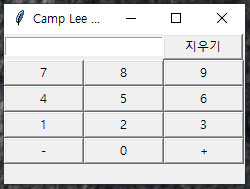
  • Palce, Pack, Gird는 동일한 프레임 내에서 사용할 수 없으므로, 다양한 배치방법을 사용하기 위해서는 Frame을 나눠줘야 합니다.

  • Frame 또한 같은 방법으로 배치를 해야합니다.

  • root 라는 Window 내에 frame이 배치됩니다.

  • button = tk.Button(생성한 프레임)

  • Place

      frame = tk.Frame(root)
      frame.place(x=1, y=1)
    
      button = tk.Button(frame, text="절대좌표 프레임속")
      button.pack()
  • Pack

      frame = tk.Frame(root)
      frame.pack(side="top")
    
      button = tk.Button(frame, text="상대위치 프레임속")
      button.pack()
  • Grid

      frame = tk.Frame(root)
      frame.grid(row=1, column=1)
    
      button = tk.Button(frame, text="격자형태 프레임속")
      button.pack()
  • 이렇게 생성한 프레임에 원하는 위젯을 원하는 배치형태로 넣습니다.

  • 예제 (기능은 넣지 않았습니다.)

## tkinter를 tk로 선언
import tkinter as tk

## Tk setup
root = tk.Tk()

# GUI Window 제목 설정
root.title("Camp Lee Python")
# GUI Window 사이즈 설정
root.geometry("240x150")

# 상단 프레임 (Pack 사용)
frame_top = tk.Frame(root)
frame_top.pack(side="top")

entry = tk.Entry(frame_top, width=22)
entry.pack(side="left")
btn_clear = tk.Button(frame_top, text="지우기", width=10)
btn_clear.pack(side="right")

# 하단 프레임 (Grid 사용)
frame_bot = tk.Frame(root)
frame_bot.pack(side="top")

btn_min = tk.Button(frame_bot, text="-", width=10)
btn_plus = tk.Button(frame_bot, text="+", width=10)
btn0 = tk.Button(frame_bot, text="0", width=10)
btn1 = tk.Button(frame_bot, text="1", width=10)
btn2 = tk.Button(frame_bot, text="2", width=10)
btn3 = tk.Button(frame_bot, text="3", width=10)
btn4 = tk.Button(frame_bot, text="4", width=10)
btn5 = tk.Button(frame_bot, text="5", width=10)
btn6 = tk.Button(frame_bot, text="6", width=10)
btn7 = tk.Button(frame_bot, text="7", width=10)
btn8 = tk.Button(frame_bot, text="8", width=10)
btn9 = tk.Button(frame_bot, text="9", width=10)

# 더하기 빼기 버튼 위치(Grid)
btn_min.grid(row=4, column=1)
btn_plus.grid(row=4, column=3)

btn0.grid(row=4, column=2)
btn1.grid(row=3, column=1)
btn2.grid(row=3, column=2)
btn3.grid(row=3, column=3)
btn4.grid(row=2, column=1)
btn5.grid(row=2, column=2)
btn6.grid(row=2, column=3)
btn7.grid(row=1, column=1)
btn8.grid(row=1, column=2)
btn9.grid(row=1, column=3)
root.mainloop()

참고 링크 : Tkinter를 사용하여 계산기 만들기 예제 바로가기


python3.9 | camp-lee@naver.com

반응형

'[GUI] Tkinter' 카테고리의 다른 글

[Tkinter 1편] 패키지 설치 및 간단 예제  (0) 2021.11.25
반응형

[Tkinter 1편] 패키지 설치 및 간단 예제

파이썬 Tkinter 패키지를 사용하여 직접 GUI를 만들어 사용하는 방법을 공유합니다.


목차:


1. Tkinter 패키지 설치 및 간단 예제


2. Tkinter GUI 생성

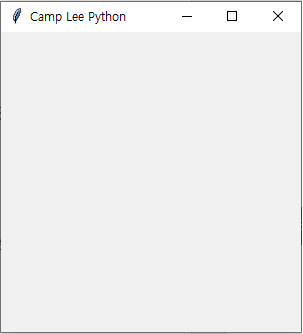
  • GUI 윈도우 생성 기본 틀
## tkinter를 tk로 선언
import tkinter as tk

## Tk setup
root = tk.Tk()

# GUI Window 제목 설정
root.title("Camp Lee Python")
# GUI Window 사이즈 설정
root.geometry("300x100")

root.mainloop()


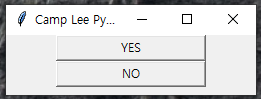
3. Button 넣기 간단 예제

  • 자세한 설명은 주석을 참고하세요.
  • 위젯을 구성하는 방법에 대해 구조를 참고하세요
## tkinter를 tk로 선언
import tkinter as tk
from tkinter import messagebox

## Tk setup
root = tk.Tk()

# GUI Window 제목 설정
root.title("Camp Lee Python")
# GUI Window 사이즈 설정
root.geometry("250x60")

# YES 버튼 생성, command(명령) : msgbox 함수에 "YES Button" 넣기, width : 버튼 크기(가로)
btn_YES = tk.Button(root, text="YES", width=20, command = lambda: msgbox('YES Button'))
btn_YES.pack()

# NO 버튼 생성, command(명령) : msgbox 함수에 "NO Button" 넣기, width : 버튼 크기(가로)
btn_NO = tk.Button(root, text="NO", width=20, command = lambda: msgbox('NO Button'))
btn_NO.pack()

# 버튼을 눌렀을 때 실행되는 메세지박스 함수
def msgbox(text):
    tk.messagebox.showinfo("버튼 클릭",text)

root.mainloop()


python3.9 | camp-lee@naver.com

반응형

'[GUI] Tkinter' 카테고리의 다른 글

[Tkinter 2편] 위젯 배치 | 위치 설정  (0) 2021.11.26
반응형

[파이썬 연습] 파이썬으로 계산기 만들기 Tkinter

Python과 Tkinter 패키지을 이용하여 간단한 계산기를 만듭니다.


목차:


1. Tkinter 패키지 설치


2. 계산기 예제

## tkinter를 tk로 선언
import tkinter as tk

## Tk init
root = tk.Tk()
## GUI window title, size
root.title("Calculator")
root.geometry("250x260")

## GUI Frames
# display frames
frame_display = tk.Frame()
frame_display.pack()
# btn frames
frame_btns = tk.Frame()
frame_btns.pack()
# font display, btn
font = ("Courier", 30, "bold")
font_nums = ("Courier", 12, "bold")
# display setup
display = tk.Entry(frame_display, width=45, justify='right', font=font)
display.pack()

# globals
global num_operator
num_operator = []

## btn clicked insert number on display
def btn_click(num):
    display.insert(tk.END, num)
## display, list clear
def btn_allclear():
    print("Clear Numbers")
    global num_operator
    num_operator.clear()
    display.delete(0, tk.END)
## 계산 (def main)
def btn_cal(button):
    # 연산자 [더하기 빼기 나누기 곱하기]
    operators = ['+', '-', '/', '*']
    # Display의 숫자와 연산자를 같이 List에 담기 ex : [1+] or [2-] or [3/]
    num_operator.append(display.get()+button)
    display.delete(0, tk.END)
    print(num_operator)
    # List의 index가 2개 이상이 되면 계산 > ex :[1+, 2=] 가 되었을 때
    if len(num_operator)>=2:
        # 처음 연산자 ['+', '-', '/', '*']
        operator = num_operator[0][-1]

        try:
            first_num = int(num_operator[0].split(operator)[0])
        except:
            first_num = float(num_operator[0].split(operator)[0])

        # 두번 째 연산자가 등호일 때 결과값 출력, 아닐 때 중첩 계산
        if num_operator[1][-1] == '=':
            result = calculate(operator,first_num,int(num_operator[1].split("=")[0]))
            display.insert(tk.END, result)
            num_operator.clear()
        else:
            for op in operators:
                if op == num_operator[1][-1]:
                    second_num = num_operator[1].split(op)
                    reset = str(calculate(operator, first_num, int(second_num[0])))
                    num_operator.clear()
                    num_operator.append(reset+op)
                    break

# 연산자에 따라 return하는 함수
def calculate(op, num1, num2):
    if op == '+': # plus
        return num1 + num2
    if op == '-': # minus
        return num1 - num2
    if op == '/': # div
        return num1 / num2
    if op == '*': # multi
        return num1 * num2

# 버튼 GUI SETTINGS
def gui_settings():
    # 버튼 크기 설정
    height = 2
    width = 5

    # 숫자 버튼
    btn_0 = tk.Button(frame_btns, text='0', height=height, width=width, font=font_nums, command=lambda: btn_click(0))
    btn_1 = tk.Button(frame_btns, text='1', height=height, width=width, font=font_nums, command=lambda: btn_click(1))
    btn_2 = tk.Button(frame_btns, text='2', height=height, width=width, font=font_nums, command=lambda: btn_click(2))
    btn_3 = tk.Button(frame_btns, text='3', height=height, width=width, font=font_nums, command=lambda: btn_click(3))
    btn_4 = tk.Button(frame_btns, text='4', height=height, width=width, font=font_nums, command=lambda: btn_click(4))
    btn_5 = tk.Button(frame_btns, text='5', height=height ,width=width, font=font_nums, command=lambda: btn_click(5))
    btn_6 = tk.Button(frame_btns, text='6', height=height, width=width, font=font_nums, command=lambda: btn_click(6))
    btn_7 = tk.Button(frame_btns, text='7', height=height, width=width, font=font_nums, command=lambda: btn_click(7))
    btn_8 = tk.Button(frame_btns, text='8', height=height, width=width, font=font_nums, command=lambda: btn_click(8))
    btn_9 = tk.Button(frame_btns, text='9', height=height, width=width, font=font_nums, command=lambda: btn_click(9))
    btn_0.grid(row=4, column=2)
    btn_1.grid(row=3, column=1)
    btn_2.grid(row=3, column=2)
    btn_3.grid(row=3, column=3)
    btn_4.grid(row=2, column=1)
    btn_5.grid(row=2, column=2)
    btn_6.grid(row=2, column=3)
    btn_7.grid(row=1, column=1)
    btn_8.grid(row=1, column=2)
    btn_9.grid(row=1, column=3)

    # 연산자, 클리어 버튼
    btn_clear = tk.Button(frame_btns, text='C', height=height, width=width, font=font_nums, command=btn_allclear)
    btn_plus = tk.Button(frame_btns, text='+', height=height, width=width, font=font_nums, command=lambda: btn_cal("+"))
    btn_minus = tk.Button(frame_btns, text='-', height=height, width=width, font=font_nums, command=lambda: btn_cal("-"))
    btn_mul = tk.Button(frame_btns, text='X', height=height, width=width, font=font_nums, command=lambda: btn_cal("*"))
    btn_equal = tk.Button(frame_btns, text='=', height=height, width=width, font=font_nums, command=lambda: btn_cal("="))
    btn_div = tk.Button(frame_btns, text='/', height=height, width=width, font=font_nums, command=lambda: btn_cal("/"))
    btn_plus.grid(row=4, column=4)
    btn_minus.grid(row=3, column=4)
    btn_mul.grid(row=2, column=4)
    btn_div.grid(row=1, column=4)
    btn_equal.grid(row=4, column=3)
    btn_clear.grid(row=4, column=1)


gui_settings()
root.mainloop()

실행(Run) 방법:

  • 우측 상단 ▶ 버튼
  • 실행 : Shift + F10
  • 선택 실행 : Alt + Shift + F10


python3.9 | camp-lee@naver.com

반응형

+ Recent posts